A Scheduled Task can be setup to run a report trigger for selected saved prompt answers.
Example: Report to display BOD and TSS at a location. Trigger report if data for the day exists.
1: Design report with 2 prompts for variable 1 and 2:
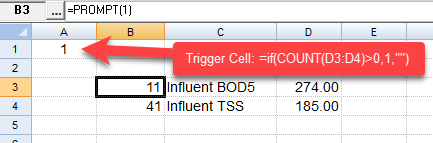
Locate the variable numbers using prompts in B3 and B4. Use VINFO and V functions to locate variable info and value. Use an if statement in cell A1 to determine if there is data to report (=if(COUNT(D3:D4)>0,1,"").
2. Save the report
3. Set A1 as the trigger cell and set this report as the Report to Run when trigger fires using File, Report Options.
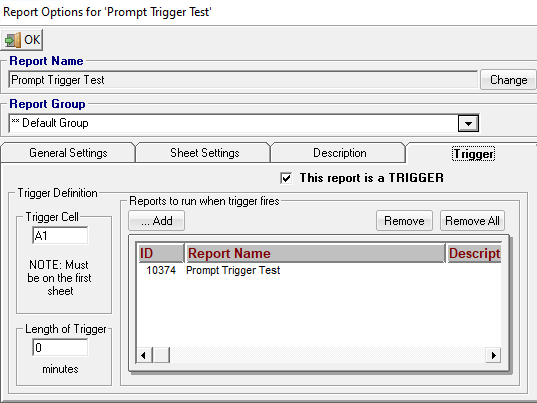
4. Save Report with trigger options.
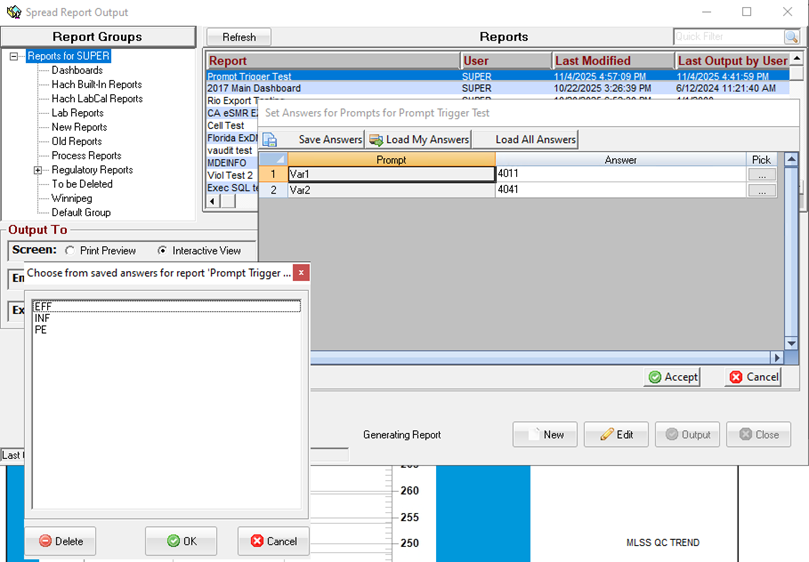
5. Use Spread Report Output and use Save Answers to save prompt answers for all possible report options. In this case, we save the following:
- Inf - Vars 11 and 41
- PE - Vars 611 and 641
- Eff - Vars 4011 and 4041
6. Go to Scheduled Tasks, click New:
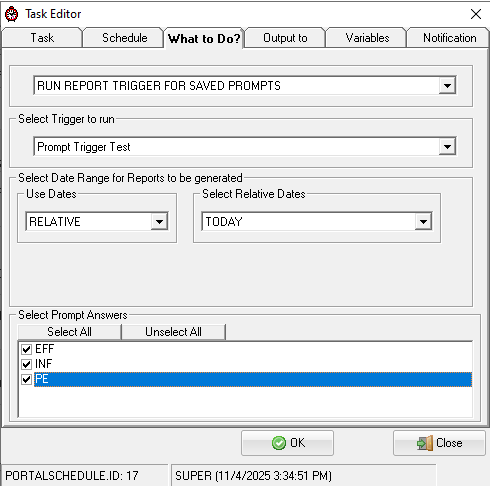
- Set What to do to "RUN REPORT TRIGGER FOR SAVED PROMPTS"
- Choose the report setup in the previous steps ("Prompt Trigger Test")
- Select which prompt answers to run. The report will be run separately for each prompt and if the trigger logic sets the trigger cell (A1) the report will be output.
TECH NOTES:
- The only output format supported is XLS
- The Length of trigger setting is ignored as some prompts may trigger the report and some may not.
- The only report that can be output is the report itself, the Reports to run when trigger fires setting is ignored.