Q14859 Lab CSV Import imports data from Lab EDD (CSV) files to WIMS. It differs from Q12351 Lab CSV Interface in the following ways:
- Supports multiple facilities where each facility database stores their CSVs in a separate folder
- Allows cross referencing by Location and Test Aliases.
- Allows mapping of the EDD CSV files via column header aliases.
- Logs invalid records to a SQL table in each facility database
WIMS Setup
When importing a record from the CSV file, the interface must identify the variable to import that data to. It reads the Sample Location from the CSV file and must first identify the WIMS Location. Since, the CSV file may over time contain different variants for the location we allow the users to set all the potential names for the location in the Aliases tab of Location Setup
Locations - Use Location Setup, Alias Tab
Example: The plant influent has been called Influent, Plant Influent, Inf, and Rocky Influent in the CSV file.
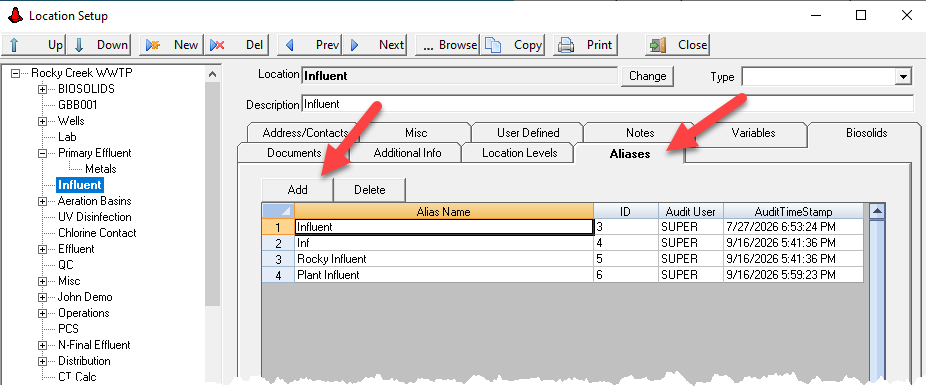
HINT: Use SQL Query below to insert all Location Names as Aliases. The interface ONLY uses the Aliases to find matches (not the Location Name).
INSERT INTO LOCATION_ALIAS SELECT 'JC',GETDATE(),LOCID,LOCATION FROM LOCATION
Test/Analyte Aliases
The interface reads the Analyte from the CSV file and must first identify the WIMS Test. Since, the CSV file may over time contain different variants for the analyte we allow the users to set all the potential names for the analyte in the Aliases tab of Test Setup.
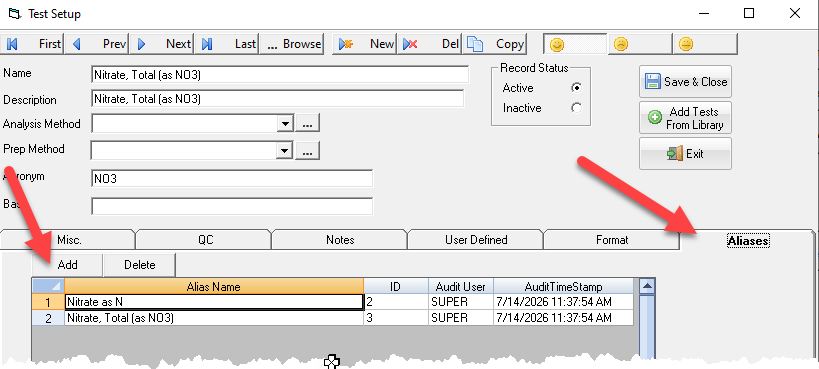
HINT: Use SQL Query below to insert all Test Names as Aliases. The interface ONLY uses the Aliases to find matches (not the Test Name).
INSERT INTO LC_TEST_ALIAS SELECT 'ADMINUSER',GETDATE(),ID,NAME FROM LC_TEST
In order to identify the variable, you must set the Analyte/Test in Edit/View Variables:
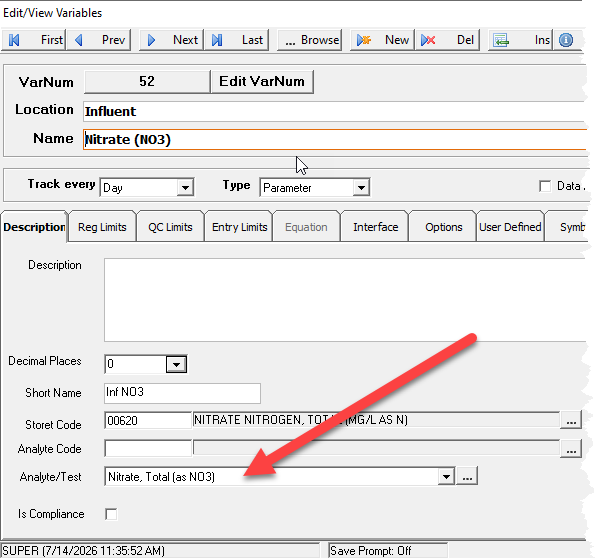
NOTE: The Analyte/Test field in Edit/View Variables was added in the 852 database upgrade. As part of that upgrade the following update query was applied to set the test for users with Lab Cal. Therefore, WIMS 8.5.2 or later is required to use the Q14859 interface. Lab Cal is NOT Required.
UPDATE VARDESC SET ASSOCTESTID=T.TESTID FROM VARDESC V, LC_SAMPLEDEFTEST T WHERE V.VARID=T.VARID and V.ASSOCTESTID IS NULL
Q14859 Interface Setup
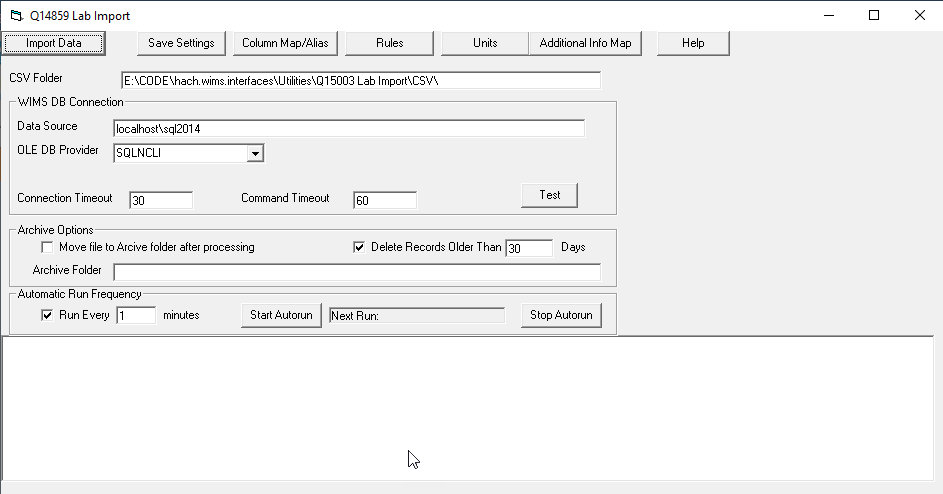
CSV Folder - Sets the Parent folder for each Facility Dbs CSV files. The subfolder names in this location MUST start with the Facil Database name. It can be followed by a dash and contain any description after the dash. Example CSV folder structure for two databases:
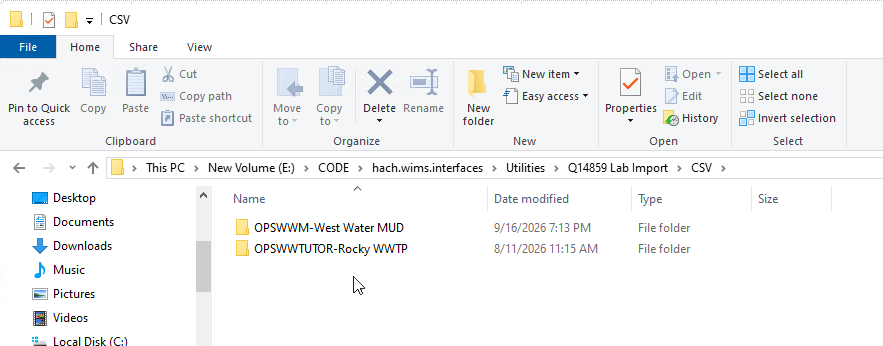
WIMS DB Connection - Specifies the connection information to the WIMS Databases
Archive Options - This option determines if the source files are archived after they have been imported. If checked, source files will be copied to the Archive Folder specified.
- Delete Log Files Older than xxx day - Deletes the log files (not the records logged to the Q14859LOG and Q14859LOGDETAIL tables.
Automatic Run Frequency
- Run Every xxx minutes - Sets how often to check for files and import data.
- Start Autorun - Starts the Autorun (displays next time it will start the import).
Column Map/Alias Button
The CSV EDD files must contain the Sample Location, Analyte, Collection Date, and Result. These fields must be mapped. In order to accept files from different labs (which will have these fields in different columns) the interface allows setting of Aliases for the header to identify the columns. For example, in the CSV file the Sample Location has a header of "Sample Description", so we set "Sample Description" as an alias for Location.
Other fields are optional, but should be mapped so unit conversions can be performed, data imported to Additional Info, etc...
To set the aliases for each field (in column A) enter a semi-colon (;) separated list of header strings. These settings are saved to the ColAlias.csv
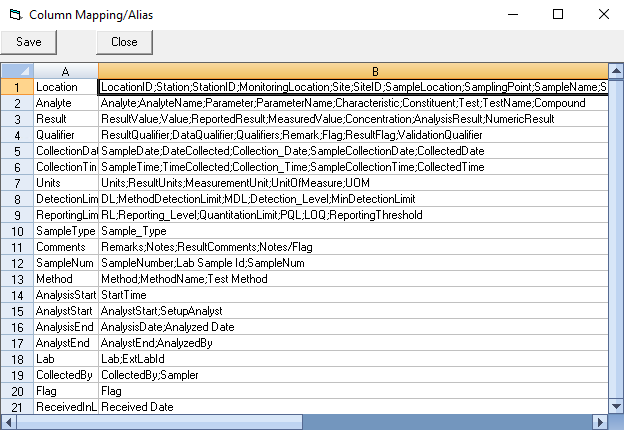
Rules button
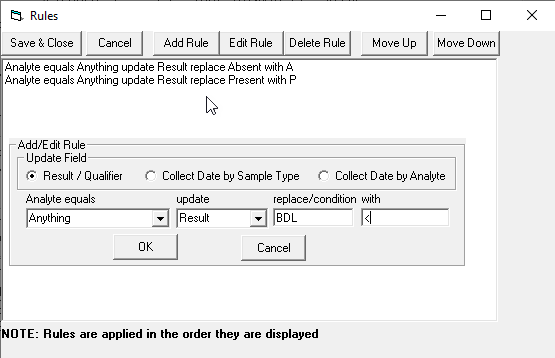
Rules are used to fix results/qualifiers that are in a different format from WIMS. Typically, it is used to replace results to match what WIMS needs. Examples:
- The CSV contains a 0 (zero) for E COLI results, WIMS has a text variable that expects an "A" (Absent). The first rule will convert the zero(s) to A for Analytes equal to E COLI.
- The third rule handles values from the lab such AA 0.45 which means <0.45. Notice also the space between the AA and 0.45. To specify a leading or trailing space use <sp>. So AA 0.45 will be imported as <0.45.
When specifying, the value "Anything" means all records will be looked at. If you need to also replace zero's with A for Total Coliform, you would need to add the rule for Total Coliform as you would not want to change all zeros to A.
Notes:
- The addition of the Detection Limit and Reporting Limit Mapping adds a couple of new options for Rules.
- The Update field section adds the ability to create a rule that will adjust the Collection Date.
- This can be triggered by Sample Date or Analyte.
- Special Tags [DL], [RL] and [RESULT] can be used in the 'with' field.
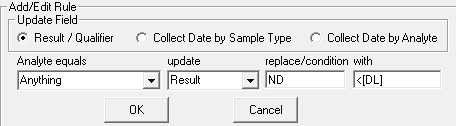
For this rule, if Result = ND it will be replaced with <2.0 Where 2.0 is the value in the Detection Limit Column.
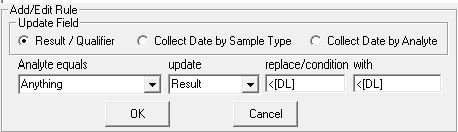
For this rule, if Result is less than the value in the Detection Limit Column, Result will be replaced with <2.0 where 2.0 is the value in the Detection Limit Column.
This rule can be defined by Sample Type or by Analyte. The Collection Date will be adjusted by the number of days or hours by the Offset Amount.
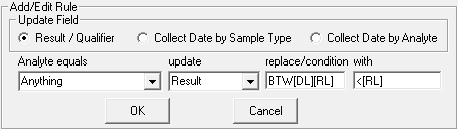
For this rule, if the Result is between the Detection Limit and the Reporting Limit, Result will be replaced by < the value of Reporting Limit.
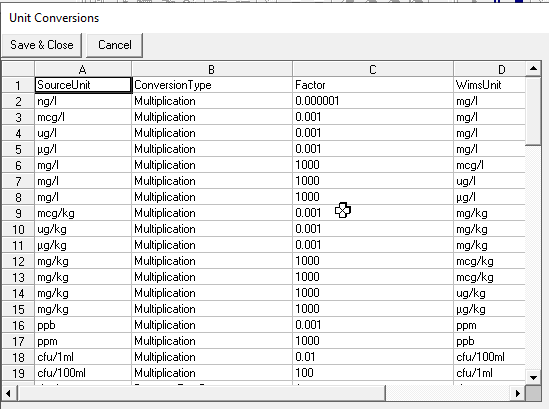
Units Button
Sets the unit conversions to be performed on import.
Additional Info Map Button
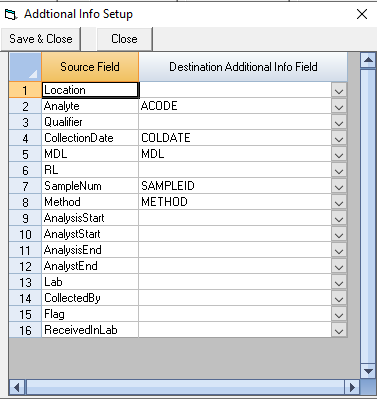
Maps the CSV columns to WIMS Data Additional Info fields.
Help Button
Displays this help topic
Log Tables
A log file is created for each day of the interface in the program's Log folder when running in Auto mode, and one is created for each manual run. In addition, each run is logged to each facility's Q14859LOG table and any invalid records are logged to the Q14859LOGDETAIL table. These tables are automatically created by the interface if the tables do not exist at the beginning of each import.
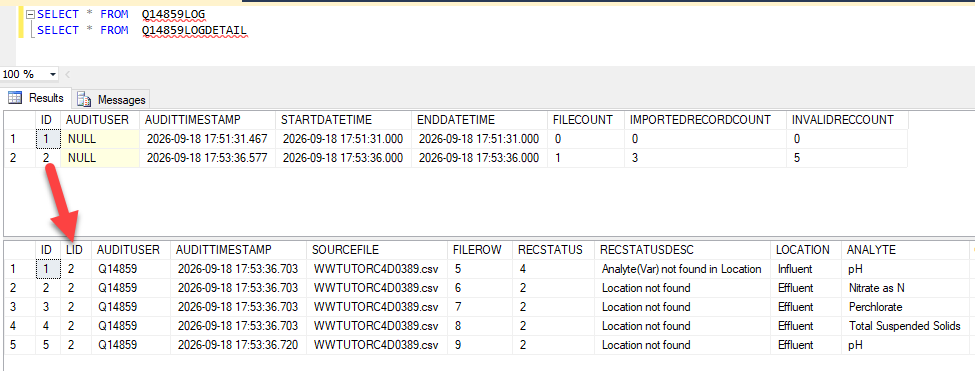
In this example, the interface ran twice. The first run there were no files to import. In the second run, there was 1 file to import (FILECOUNT) and it imported 3 records successfully (IMPORTEDRECORDCOUNT) and 5 records in the file were not imported (INVALIDRECCOUNT). The invalid records were logged to the Q14859LOCDETAIL. The RECSTATUS and RECSTATUSDESC indicate why the records were not imported.
| FILEROW |
Recstatus |
Explanation |
| 5 |
4 - Analyte(Var) not found in Location |
The Location Influent was found in the LOCATION_ALIAS table however no variable in that location had an Analyte/Test (ASSOCTESTID) where the Analyte pH was aliased in the TEST_ALIAS table. |
| 6 |
2 - Location not found |
The Location Effluent was not found in the Location_ALIAS table. |
|
1 - Invalid Date |
CollectionDate does not contain a valid date |
|
8 - Invalid Value |
Result does not contain a valid result for the variable |