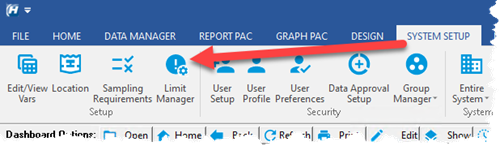
| Limit Manager allows review, update and addition of regulatory limits for variables. |
 |
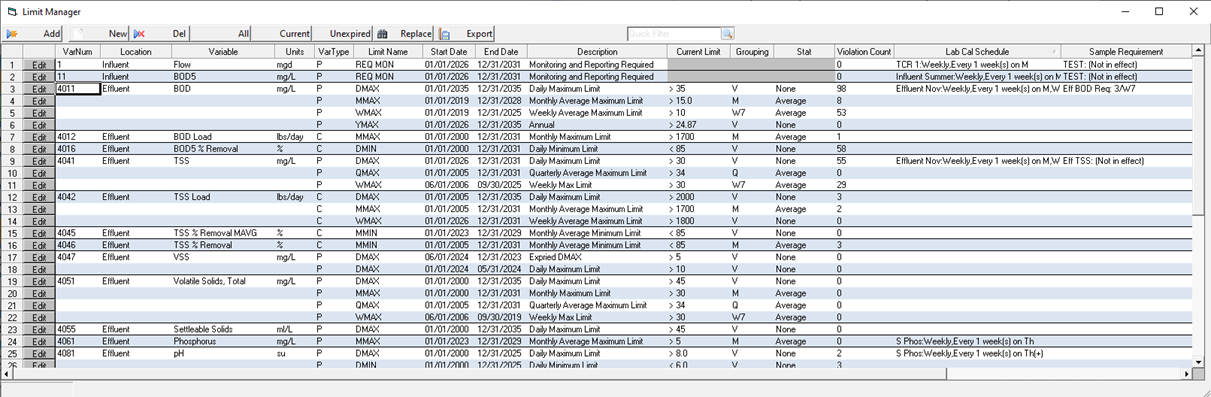
Fields:
VarNum: The Variable Number.
Location: The location (full path of location, i.e. WTP#1\Filters\F1) or sampling point of the variable.
Name: The name of the variable
Units: The units of the variable.
VarType: The Vartype of the variable.
Limit Name: The short name for the Limit. The pull down list provides a list of common name limit names. You do not have to pick from the list, you can simply type in whatever name you like. However, choosing from the list allows WIMS to default other values on this form. Also, if certain Limits Names are looked for (i.e. when entering data, values are always checked against the DMIN (Daily Min) and DMAX (Daily Max) limit.
Start date: The start date for the Limit.
End Date: The end date for the limit.
Description: A description for the limit that further describes the limit.
Current Limit: The comparison to use to determine if there is a violation.
Grouping: Used to set which dates to calculate the stat for. The calculated stat is then compared to the value with the stat field to calculate a value to compare to the Value. If the condition is true, it is a violation. Choose from the following options:
| Grouping |
Description |
| "D" |
Days. For Daily variables, all values are compared to the limit, for Daily Detail variables the Statistic is calculated for the day and compared to the limit) |
| "V" |
Value. Every value will be compared to the limit. |
| "M" |
Monthly |
| "Q" |
Quarterly |
| "SA" |
Semi-Annual |
| "W1" - "W20" |
Week (where 1-20 defines the week)
|
| "RMAxx" |
Rolling Annual Average, calculates the xx number of monthly averages and then calculates the "Statistic" of those values. IE If the report dates are Dec 1, 2007 thru Dec 31st, 2007 a grouping of "RMA12" would calc the Monthly Average for Jan 2007, Feb 2007... Dec 2007 and then calc the stat of those Monthly Averages.
|
| "MAxx" |
Last xx number of months. IE If the report dates are Dec 1, 2007 thru Dec 31st, 2007 a grouping of "MA12" would calc the stat for Jan 1, 2007 thru Dec 31st, 2007. |
| "L" |
Date range of Limit. |
Stat: The statistic to calculate:
| Stat |
Description |
| Avg |
Average |
| GMean |
Geometric Mean (Zeros (0) are ignored) |
| GMean1 |
Geometric Mean (Convert 0 to 1) |
| GMean2 |
Geometric Mean (Add one to all) |
| Total |
The total or sum |
| Median |
The Median value |
| AVG_MED |
The "Average Median" |
| GEOMEAN_MED |
The Geometric Mean or Median based on California's rule for reporting the Geometric Mean. |
| "" or "None" |
No Stat, compare all values to limit |
Violation Count: The number of values that are outside the limit specified for the date range of the limit. NOTE: Counts the number of Events logged for the limit, therefore the Compliance Engine must be running for this number to be accurate.
Lab Cal Schedule: Displays the Lab Cal schedule for the variable. NOTE: If the variable is included in two or more sample schedules only the first schedule will be displayed and a "(+)" will be added indicating additional schedules.
Sample Requirement: Displays the Sample Requirement that the variable is a part of.
BUTTONS:
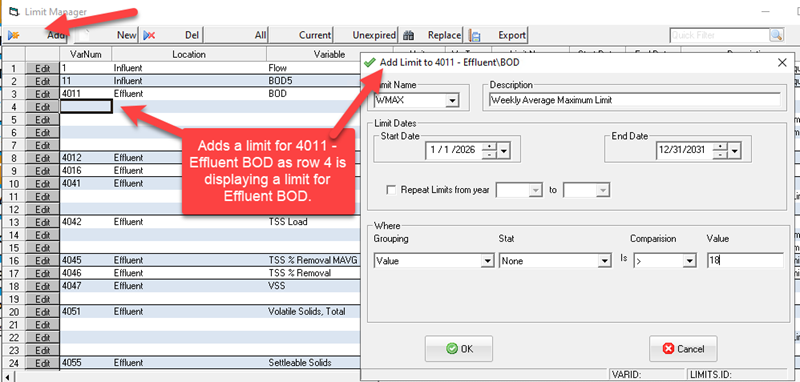
Add: Displays the Add Limit form to create a new limit for the currently selected variable.
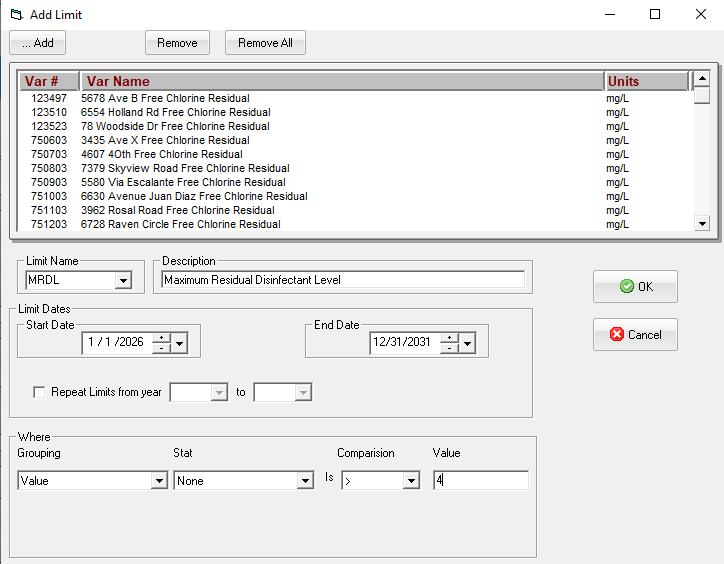
New: Adds a limit for one or more variables. NOTE: If variables are already listed on form, will add to each variables section or add a new line at the end. Does not allow a limit to be added for a variable if a limit with it's name for the date range already exists.
Del: Deletes the limits for selected rows.
All: Displays all records (default)
Current: Displays only records for limits that are in effect for the current date.
Unexpired: Displays records for limits that are in effect for the current date or future dates.
Replace: Search and replace StartDate, EndDate, Limit Name, Description, Limit, Grouping or Stat.
Export: Export the list to an Excel file.
See Also: Regulatory Limits Setup, Variable Setup