|
|
Monthly Data Entry Design allows you to add new, change existing, and delete Monthly Data Entry Forms. |
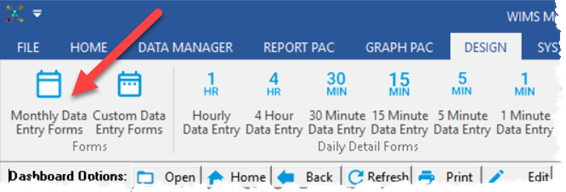 |
Once a form is created, you will be able to access it from the Data Manager menu. Designing a Monthly Data Entry form is very simple. Select Design, Monthly Data Entry Forms. The form design screen will be displayed. If you have not designed any forms yet, the design screen will be empty allowing you to choose your variables, options, and form name for your first form. If there are existing forms, the first form will be displayed. Once in the design form you may choose the variables you wish to work with in any order you decide, and name your new form. You may either exit the design form by clicking the [Exit] button, or you may choose [New] to continue with the creation of another form (changes are automatically saved).
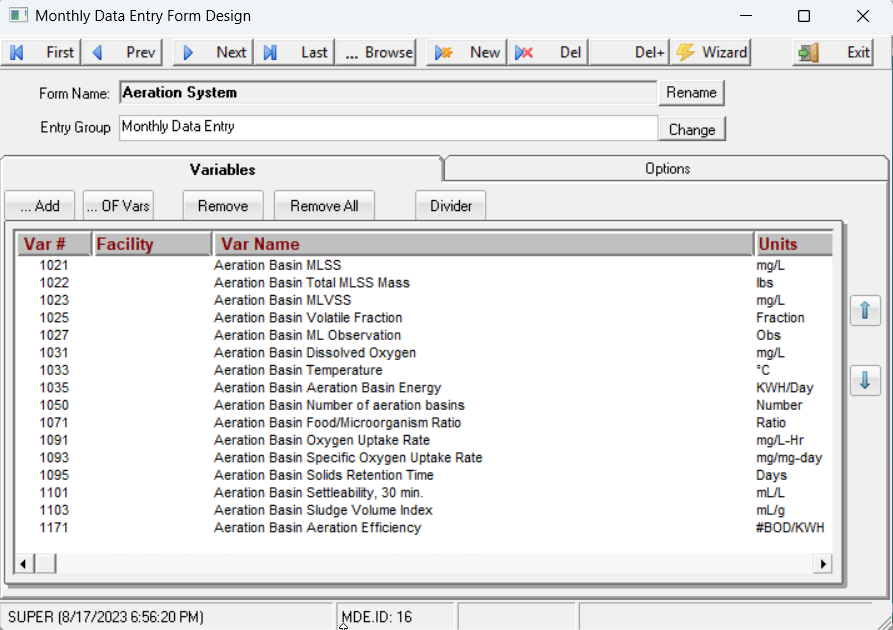
- Form Name
Displays the name selected Monthly Data Entry Form. The name is displayed in the Data Manager Menu and is used to select the form for use.

Click the Change button to edit the Form Name. The ... button allows you to select a form to design (instead of using Next, Prev buttons to move to the form).
- Entry Group
Sets the Entry Group for the Monthly Data Entry Form.
Options Tab
- Heading - Allows selection via checkboxes of what will appear for each variable that will appear in column header.
- Summary Stats - Set the stats to display at the bottom of the form.
- Default Logbook - Sets the logbook to show in column one of the form.
- Enter Key Action - Select Down or Across to determine the direction the cursor will move when the [Enter] key is pressed. When working in a Monthly Data Entry form, moving down will move you to the next day, same parameter. Moving across will move you to the next parameter, same day.
- Auto Advance - When On, the enter key moves to the next entry cell (i.e. skips cells that are calculated, have not required set for the date, etc...)
- Sync Form to Rio - When checked will update the corresponding Rio Spreadsheet when the form is changed.
- Linked CDE Form - Sets the CDE form that is linked to this MDE form. If a custom data entry from is linked to an MDE, anytime the CDE form is changed the MDE form will be updated to display the variables on the CDE form.
- Refresh Vars SQL - An SQL statement that determines the variables (and order) of the form allowing you to build dynamic forms. The Refresh Form button executes the SQL query and updates the variables on the form. See Monthly Data Entry, Using Refresh Vars for examples.
BUTTONS:
|