This is the source configuration screen for the WIMS Direct Server-Side Interface to EDS SCADA CSV Files.
In order to configure source connection from the interface, click Configuration and select Source Configuration.

The next screen will display parameters to configure the interface connection to source files:
Source File Configuration
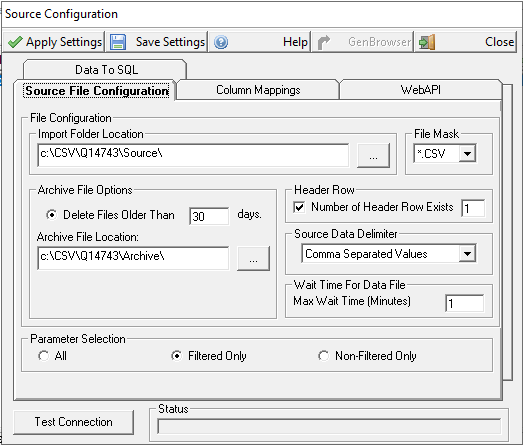
- File Configuration - this configures the interface for folder and file structure.
- Import Folder Location - define location of the text files.
- File Mask - use standard masks such as asterisk (*). Default is "*.CSV".
- The files generated by the Interface will be *.csv files, however other files will be processed if they exist.
- Archive File Location - These settings control how the Source Files are archived.
- Archive File Location - Directory the source files will be moved to after being processed.
- Delete Files Older Than x days - Set the number of days you want to retain files in the Archive Directory.
- Header Row - set the number of header rows the Source Files will contain.
- the source files generated by this interface will have one header row.
- Source Data Delimiter - delimiter can be Comma Separated of tab.
- the source files generated by this interface will be comma separated.
- Wait Time For Data File - Set time you want the Interface to wait for the Data File before aborting the Import.
- If not set, defaults to 1 minute.
- Parameter Selection - Adds ability to select parameters with or without filters set on the Interface tab of WIMS Variables.
Select Folder for Source or Archive files

The above display shows what the navigation aid looks like when you click the elipse buttons [...] for folder locations.
Column Mappings

This is where you configure the source data characteristics and columns. When selecting columns you can use the elipse buttons [...] to navigate source data:
Note: In order for the elipse buttons to work, there must be a source file in the Source file directory.

Simply click on the appropriate column and click the Select Column button to select it.
Test Connection Button:
 This button will allow you to test settings before applying or saving them.
WebAPI

- EDS API Configuration - define the credentials the API uses to connect to the EDS system.
- Server - address of the EDS Server used by the API.
- User - User name for WebAPI.
- Password - Password for user.
- Tag File - define the directory and name of the Tag File the Python Data Collection program will use to determine what variables to collect data for.
- Directory - directory for the Tag File.
- File Name - Name of the Tag File.
- Python Programs - two python programs are used in this Interface to collect Tag and Data from the EDS system.
- Tags - Path/Filename of the Python program used to collect a Tag List (Used by GenBrowser).
- Data - Pth/Filename of the Python program used to collect data from the EDS system.
Test EDS Connection Button:
 This will test a connection to the EDS Server. This will ensure the connection credentials are correct.
Data To SQL
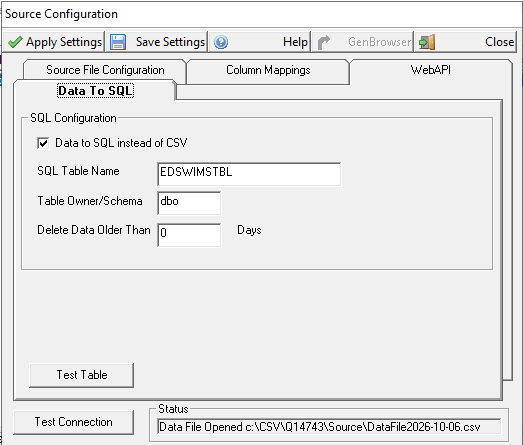
- SQL Configuration - This is a new option to collect data in a WIMS SQL Table for the interface to query from. This resolves some issues with collecting filtered data directly from the EDS System
- Data to SQL instead of CSV - Checking this box activates this option.
- SQL Table Name - Name of the table in OPSROOT used to collect the data.
- Table Owner/Schema - Owner of the SQL Table.
- Delete Data Older Than - This will delete data from the SQL Table older than the days set.
- Test Table - This will verify the table exists and has the correct fields.
Notes
The EDS APIs used in the standard interface get correct data for all supported Statistics that don't have data filters. Those with data filters don't return the correct data.
The SQL option was added to resolve this issue. If the SQL option is enabled, the data for all parameters and filters are collected as 1 minute averages and put into a SQL table in OPSROOT. Then the parameter results are returned from queries to this table. This resolves the EDS API problems with filtered parameters, however it returns a very large amount of data.
For this reason, the Parameter Selection option was added. Two instances of the Interface can be set up, one using the Standard API collection of results. This one should have the Parameter Selection set to Non-Filtered Only. The second instance should have the SQL Option enabled, and Parameter Selection set to Filtered Only.